

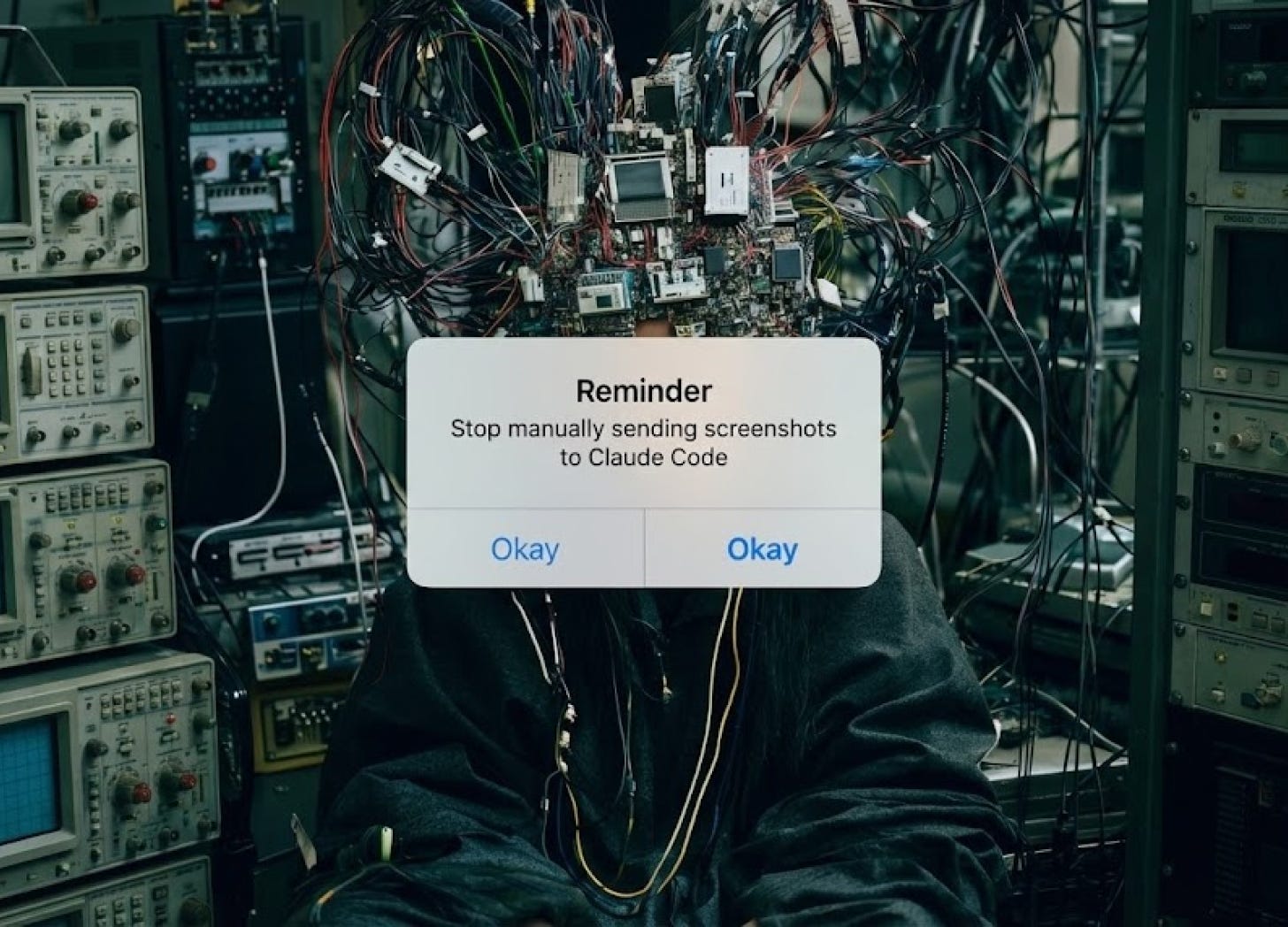
If you’re still dragging simulator screenshots into Claude to debug UI, you’re wasting the best part of Claude Code.
Two months ago, I was building my dream social network in Claude Code. Just me, nights and weekends, moving faster than I ever thought possible with a solo project.
But one thing was killing my momentum.
Every time something looked wrong on screen, I’d go through the same ritual:
Build.
Open the simulator.
Squint at the bug.
Screenshot.
Find the file in Finder.
Drag it into Claude.
Type out what I was seeing.
Wait for the fix.
Build again.
Repeat.
That loop wasn’t just slow, it was cognitively exhausting. I was the translation layer between Claude’s brain and my app’s face, and every time I hit flow state, that translation friction pulled me out.
Most of you are still doing this. I see it constantly: people dragging screenshots into chat, describing what’s broken, waiting, repeating. The back-and-forth is exhausting because you’re asking AI to debug something it literally cannot see.
The fix is giving Claude direct access to the simulator or browser. That’s where MCP servers come in.
MCP in 30 Seconds
An MCP server is a bridge that gives Claude access to tools it doesn’t have by default. The flow:
You tell Claude what to do
Claude asks the MCP server how to do it
The MCP server translates that into commands
Claude executes them
For our purposes: there’s an MCP server that wraps iOS simulator control. Connect it, and Claude can tap, swipe, read the screen, and run tests, without you lifting a finger.
iOS Simulator Setup
I’m using Facebook’s IDB (iOS Development Bridge) and Joshua Yoes’ ios-simulator-mcp which wraps it.
You don’t need anything fancy for this:
macOS
Xcode + iOS simulators
Homebrew
~15 minutes
Step 1: Install IDB
Apple gives you xcrun simctl for basic simulator control, but it doesn’t give you a clean “tap/swipe/read the accessibility tree” interface. IDB fills that gap.
brew tap facebook/fb
brew install idb-companion
pip3 install fb-idbNote: If you’re on Python 3.11+ and using the system interpreter, you may need
pip3 install fb-idb --break-system-packages.
Verify it’s working:
idb list-targetsYou should see your available simulators listed.
Step 2: Add the MCP Server
claude mcp add ios-simulator npx ios-simulator-mcp
One command. Claude Code now has access to your iOS simulator.
Step 3: Verify the Connection
Start Claude Code and run:
/mcp
Navigate to ios-simulator. You’ll see tools for getting the booted simulator ID, tapping, swiping, typing, taking screenshots, and reading the accessibility tree. The exact names might shift between versions, but you’ll recognize them: ui_tap, ui_swipe, screenshot, launch_app, plus a couple of “describe the screen” tools.
You’re connected.
Teaching Claude How to Test
Having the tools is step one. Teaching Claude how to use them effectively is where the magic happens. This goes in your CLAUDE.md.
Here’s a simplified version of what I use:
## iOS Simulator Testing

When I ask you to test a feature or verify a UI change:

1. **Build the app**: Run the build command and wait for success
2. **Launch in simulator**: Use `launch_app` with the bundle ID
3. **Navigate to the feature**: Use `ui_tap` and `ui_swipe` to get there (refer to sitemap.md available in the root directory)
4. **Verify the state**: Use the accessibility describe tools to read what’s on screen
5. **Take a screenshot**: Capture the result for confirmation
6. **Report back**: Tell me what you found

### Key Coordinates
- Tab bar: y=750 (bottom navigation)
- Navigation back button: x=30, y=60
- Primary action button: x=200, y=700

### Common Flows
- Login: Tap email field (x=200, y=300), input text, tap password field (x=200, y=380), input text, tap Submit (x=200, y=460)
- Navigate to Profile: Tap profile tab (x=350, y=750)

### When Something Looks Wrong
1. Read the accessibility tree
2. Compare expected vs actual element states
3. Take a screenshot for my review
4. Suggest a fix
If I ask Claude to “test the commenting flow,” Claude builds the app, launches the simulator, takes a screenshot, taps on a post, takes a screenshot, taps on the comment button, takes screenshot, adds a comment and presses submit, reads the screen state, and tells me whether it worked. If something’s broken, it shows me the screenshot and proposes a fix. In some cases it’ll see the visual inconsistency and will fix it immediately just like it would fix a compiler error.
Closed loop. No manual intervention.
What My Workflow Looks Like Now
Before:
Make a change
Build
Open simulator
Navigate to the feature
Screenshot
Find file in Finder
Drag into Claude
Explain what I’m seeing
Wait for fix
Repeat
After:
Describe what I want
Claude builds, tests, and confirms
Here’s a real prompt from yesterday:
“The profile avatar isn’t showing up on the edit profile screen. Find it and fix it.”
Claude built the app, launched the simulator, navigated to edit profile, read the accessibility tree to see that the avatar image view existed but had no source, checked the code, found I was passing the wrong key from the user object, fixed it, rebuilt, re-tested, and confirmed the avatar was now visible.
I played chess while this happened.
The Compound Effect
When the cost of testing drops to zero, you test more. When you test more, you catch issues earlier. When you catch issues earlier, you ship faster.
And here’s the thing: Claude gets better at testing your specific app over time. The more flows you document in CLAUDE.md, the more context it has. It’s not just automation, it’s institutional knowledge that compounds.
Bonus: Web with Playwright
The same pattern works for web. Microsoft’s official Playwright MCP server lets Claude control browsers the same way:
claude mcp add playwright npx @playwright/mcp@latestAdd a small “Web Testing” section to your CLAUDE.md with your local URLs and key selectors, and Claude can open localhost, click through flows, snapshot the DOM, and verify behavior.
I’ll do a deeper dive on the web setup in a future post. The pattern is identical, the only difference is the tools.
Getting Started
For iOS:
brew tap facebook/fb && brew install idb-companionpip3 install fb-idbclaude mcp add ios-simulator npx ios-simulator-mcpAdd testing instructions to your
CLAUDE.md
Verify:
Run
/mcpin Claude CodeLook for your new tools
Ask Claude to “take a screenshot of the simulator” or “tap the center of the screen”
You’ll know it’s working when Claude starts doing things without asking you to screenshot.
If this was useful, subscribe. Next up: automated testing pipelines that run before every commit.
Thanks Pete! Yeh any tweaks/hacks on using playwright more effectively for having CC test and bug fix would be so helpful.
This is awesome. Thanks!